How to Create Engaging Videos: 3 Workflows for Educators with Vikram Chalana
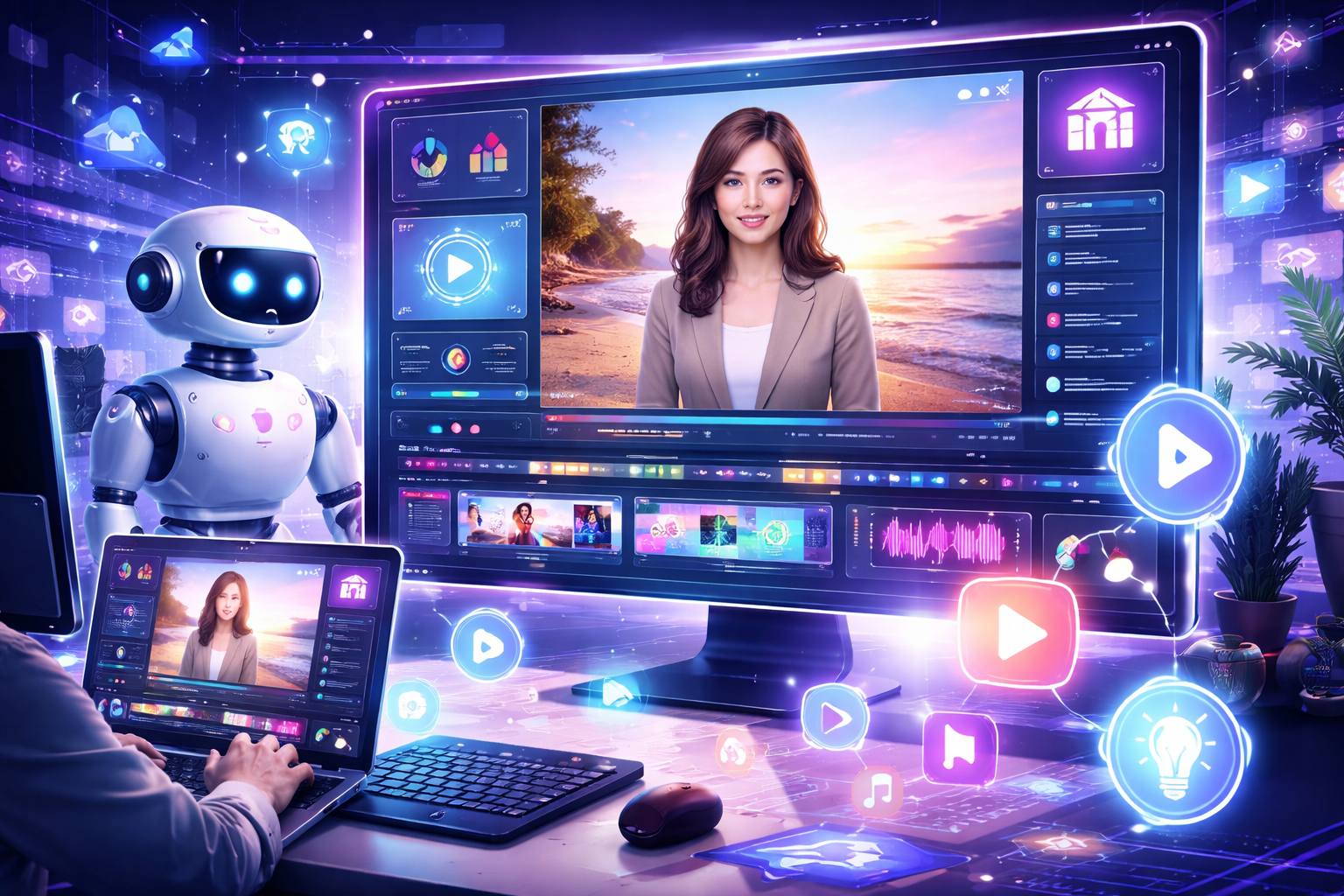
Creating engaging video content can feel daunting, especially for educators who already have a full plate. In this post, we'll explore three effective workflows using Pictory that can help you transform your teaching materials into professional videos quickly. Whether you’re converting PowerPoint presentations or turning scripts into videos, these methods will streamline your video creation process, making it easier for you to connect with your students and enhance their learning experience.
Workflow 1: PowerPoint to Video in Minutes
Converting PowerPoint presentations into videos can be a game-changer for educators. With Pictory, this process is seamless and efficient.
Why This Matters: Many educators rely on PowerPoint for their lessons, and turning these into videos can help reach students who prefer visual learning.
How to Do It:
- Upload Your PowerPoint: Start by uploading your presentation to Pictory.
- Add Narration: If your slides contain notes, you can use them as narration. Alternatively, Pictory can automatically generate voiceovers based on your slides.
- Customize: Add avatars or other features to enhance engagement.
- Export Your Video: Within minutes, you’ll have a polished video ready for your learners.
Example: Vikram shared that with this workflow, educators can easily convert a PowerPoint to a video, making the content more accessible and engaging.
Common Mistake: A common mistake is neglecting to rehearse the narration. Practice ensures your delivery is smooth and relatable.
Workflow 2: From Script to Video
Another powerful feature of Pictory is turning scripts into videos, making it ideal for course introductions or module presentations.
Why This Matters: Videos can convey information more dynamically than text alone, helping to capture and retain student attention.
How to Do It:
- Input Your Script: Enter a script or simply a prompt into Pictory.
- Visual Matching: The platform automatically matches relevant visuals from its library to your script.
- Add Voiceover and Music: Choose to add voiceovers and background music to enhance the viewing experience.
- Generate Video: In just a few clicks, your video will be ready for use.
Example: Vikram explained that educators can create a video from a prompt like "make a one-minute video about American history," showcasing how accessible video production can be.
Common Mistake: Failing to review the visuals can lead to mismatched content. Always double-check to ensure that visuals align with your script.
Workflow 3: URL to Video
This workflow is particularly useful for educators wanting to repurpose existing online content.
Why This Matters: Transforming written content into video can help engage different learning styles and make information more digestible.
How to Do It:
- Paste the URL: Enter the URL of your article or knowledge base page into Pictory.
- Content Extraction: Pictory analyzes the page and extracts relevant information.
- Video Creation: The platform creates a video using the provided content, adding visuals and voiceovers as needed.
- Finalize and Share: Review the video and make any necessary adjustments before sharing it with your audience.
Example: Vikram mentioned that educators can use this workflow to turn internal content, like a Canvas page, into engaging videos easily.
Common Mistake: Overloading the video with too much information can overwhelm viewers. Focus on the key points to maintain engagement.
Conclusion and Key Takeaway
These three workflows highlight how Pictory can transform your teaching materials into engaging videos effortlessly. By using these methods, you can enhance your instructional design and make learning more interactive for your students. Start exploring Pictory today and simplify your video creation process!
Instructional Designer, Author, College Professor, and Podcast Host
Jackie, an Arizona native, leverages decades of experience as an instructional designer within both higher education and the corporate world. She holds an MBA and a Master of Science in Instructional Design and Technology, both acquired through online learning. In addition to her full-time role, Jackie serves as an adjunct instructor, teaching online courses at Grand Canyon University. During her leisure time, she delights in reading books across a range of genres, enjoying movies and TV shows, playing games, listening to uplifting music, and spending quality time with her family and friends.

Guiding the Classroom with AI Copilots